How to type currency symbols: quick table
The quick table lists ten widely used currency symbols with their Windows Alt code where one exists, the Mac shortcut on a US keyboard, the Unicode code point and the HTML entity. Copying a symbol from the first column also works on any device.
| Symbol | Currency | Windows | Mac (US layout) | Unicode | HTML |
|---|---|---|---|---|---|
| $ | Dollar | Shift+4 | Shift+4 | U+0024 | $ |
| € | Euro | Alt+0128 | Option+Shift+2 | U+20AC | € |
| £ | Pound | Alt+0163 | Option+3 | U+00A3 | £ |
| ¥ | Yen, yuan | Alt+0165 | Option+Y | U+00A5 | ¥ |
| ¢ | Cent | Alt+0162 | Option+4 | U+00A2 | ¢ |
| ₹ | Indian rupee | 20B9, Alt+X | Character Viewer | U+20B9 | ₹ |
| ₫ | Vietnamese dong | 20AB, Alt+X | Character Viewer | U+20AB | ₫ |
| ₩ | Korean won | 20A9, Alt+X | Character Viewer | U+20A9 | ₩ |
| ₽ | Russian ruble | 20BD, Alt+X | Character Viewer | U+20BD | ₽ |
| ฿ | Thai baht | 0E3F, Alt+X | Character Viewer | U+0E3F | ฿ |
The meaning of each sign, and which currencies share them, is in our list of currency symbols.
Windows: Alt codes and Unicode shortcuts
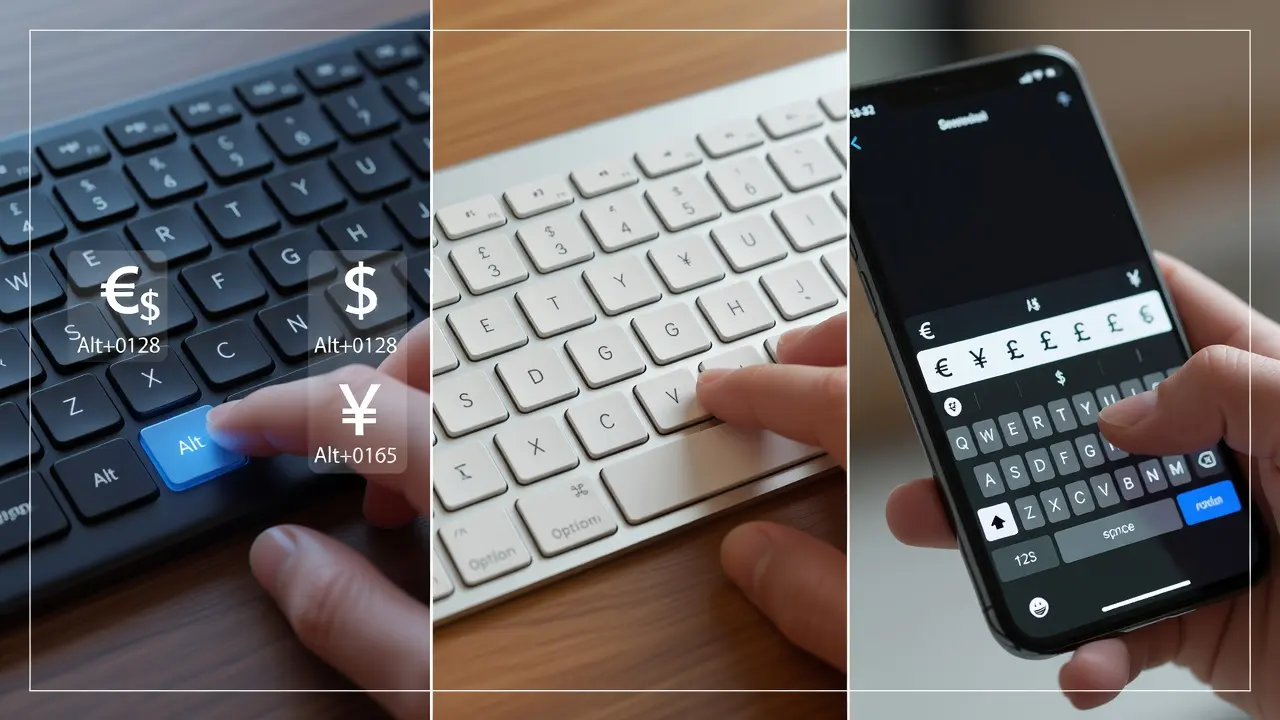
On Windows, Alt codes work by holding the Alt key and typing a four-digit number on the numeric keypad, then releasing Alt. They only cover older symbols in the Windows-1252 character set, such as €, £, ¥ and ¢. For newer signs, type the Unicode number and press Alt+X in Word or WordPad, or use the emoji panel.
- The euro sign keyboard shortcut is Alt+0128. On many European keyboard layouts, AltGr+E or AltGr+4 also gives €.
- The pound sign keyboard shortcut is Alt+0163. On a UK keyboard, Shift+3 gives £ directly.
- Press Windows key + period (.) to open the emoji panel, then choose the Symbols tab and the currency group.
- Laptops without a numeric keypad cannot type Alt codes with the top number row; use the emoji panel or Alt+X instead.
In Excel and other spreadsheets, you rarely need to type the sign at all. Select the cells, press Ctrl+1 to open Format Cells, choose Currency or Accounting and pick the symbol from the list. The number stays a number, so totals and formulas still work.
Mac: Option shortcuts and the Character Viewer
On a Mac with a US keyboard, the common signs have Option shortcuts: Option+Shift+2 for €, Option+3 for £, Option+Y for ¥ and Option+4 for ¢. For any other symbol, open the Character Viewer with Control+Command+Space, type the currency's name, such as "rupee" or "won", and double-click the result.
Shortcuts depend on the keyboard layout selected in System Settings. On a British layout, Shift+3 types £ and Option+2 types €. If a shortcut gives the wrong character, check the input source shown in the menu bar.
iPhone and Android
On iPhone and Android, open the number keyboard and press and hold the $ key, or the local currency key, to see a menu of other currency signs such as €, £, ¥ and ₩. Slide to the one you want and release. Signs not in the menu can be copied from a web page or typed with a keyboard for that language.
Adding a second keyboard is the easiest way to type a sign you use often. A Vietnamese keyboard makes đ and ₫ easy, a Korean keyboard gives ₩, and an Indian English keyboard gives ₹. The Vietnamese sign is covered in detail in our guide to the vnd currency symbol, and the rupee sign in our guide to the inr symbol.
HTML entities and Unicode for web pages
On web pages, write a currency sign either directly as a UTF-8 character or as an HTML entity. Named entities exist only for a few signs, such as €, £, ¥ and ¢. For others, use a numeric entity such as ₫ for ₫ or ₹ for ₹.
Save pages in UTF-8 and declare it in the page header, so signs display correctly. If a sign appears as a box or question mark, the font lacks the character or the page uses the wrong encoding. A worked example with an assumed rate: a price shown as "₹850" displays as ₹850, about $10 at 85 rupees per dollar. Every currency's code is in the world currencies list, and amounts can be converted with the currency converter.